
In this post I would be showin you the steps needed to create a tunnel between Linux and Windows XP for safe data transmission with proper data encapsulation. We will be using Openswan on the Linux server and IPsec on the Windows XP to do so.
Linux side configuration
Make sure you have openswan package installed on your machine. I will be using Redhat 6.2 so the commands I am using might vary as per other distros.
Install the required package using yum
# yum -y install openswan
# vi /etc/ipsec.conf

 version 2.0     # conforms to second version of ipsec.conf specification

# basic configuration
 config setup
        # Debug-logging controls:  "none" for (almost) none, "all" for lots.
        # klipsdebug=none
        # plutodebug="control parsing"
        # For Red Hat Enterprise Linux and Fedora, leave protostack=netkey
        protostack=netkey
        nat_traversal=yes
        virtual_private=
        oe=off
        # Enable this if you see "failed to find any available worker"
        # nhelpers=0
        interfaces=%defaultroute

        klipsdebug=none
        plutodebug=none
        overridemtu=1410

conn %default
        keyingtries=1

conn sample
        right=%any
        left=%defaultroute
        authby=secret
        auto=add
        keylife=24h
        rekey=no
        keyingtries=0
        pfs=no

conn packetdefault
        auto=ignore

conn private-or-clear
        auto=ignore
Now you need to define the preshared key which will be used for authentication
# vi /etc/ipsec.secrets
: PSK "secretkey"
# service ipsec start
Windows XP side configuration
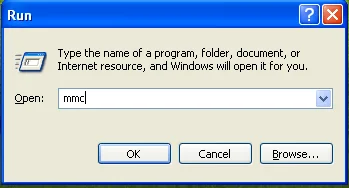
Open the "run" prompt and launch "mmc console"
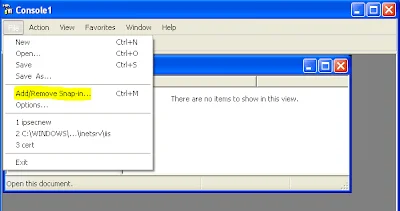
Now go to File and click on "Add/Remove Snap-in"
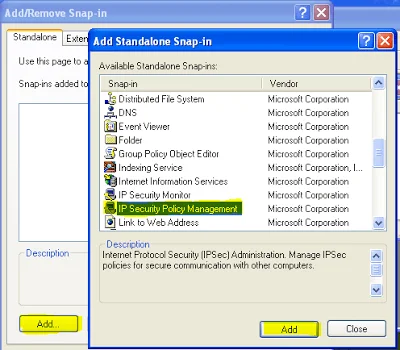
Now add "IP Security Policies on Local Computer"
Create a new IP security policy
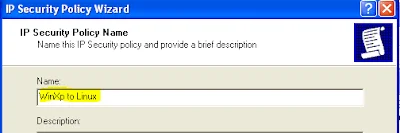
Mention the preshared key as provided in ip.secrets on the linux server
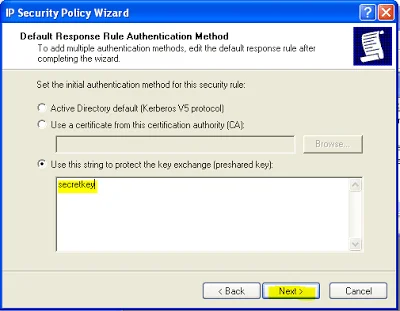
Then you can click on Next and Finish the wizard.
Now edit the properties of this policy. Click on "Filter Action" on the tab menu and add a new custom action
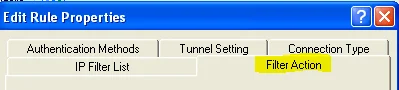
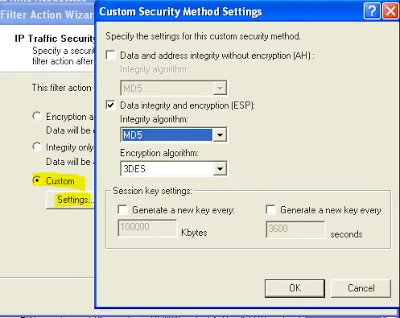
Then you can finish the wizard and select this filter action for the IPsec policy.
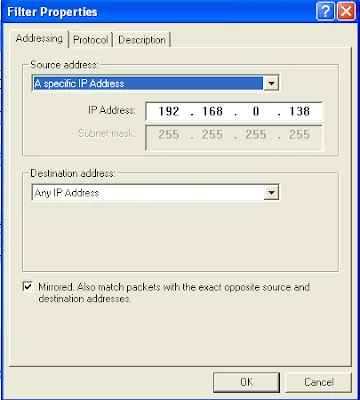
Now edit the Filter properties. (Here 192.168.0.138 is my Linux server IP)
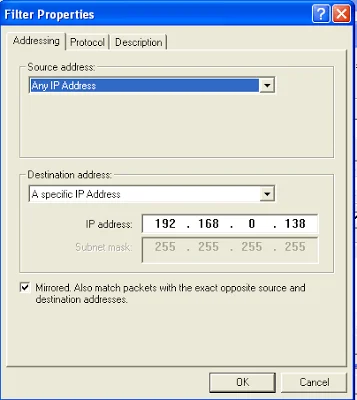
Similarly create another IP Filter rule with the name "Linux to WinXP" and add the custom Filter action to this filter rule. The only thing you need to change is the filter properties.
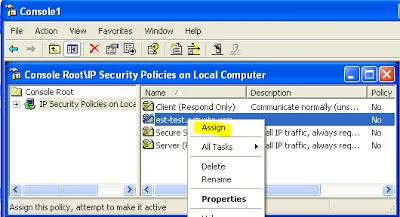
Thats all, Now you can save and close the wizard. Right click the IP security rule you created and click on "Assign".
Now try to ping your server IP on the cmd prompt
Let me know your success and failure.
Follow below links for more tutorials:
15 tips to enhance security of your Linux machine
How does a DNS query works when you type a URL on your browser?
How to create password less ssh connection for multiple non-root users
How to create user without useradd command in Linux
How to unlink/delete a symbolic in Linux
How to give normal user root privileges using sudo in Linux/Unix
How to do Ethernet/NIC bonding/teaming in Red Hat Linux
How to install/uninstall/upgrade rpm package with/without dependencies
How to preserve Symbolic links with tar command in Unix/Linux
How to give permission to user to run some commands in Linux
How to set environment (PATH) variable permanently in Linux
How to extract files to different directory using tar in Unix/Linux
What is swappiness and how do we change its value?
How to log iptables messages in different log file