
There are various method we can use to customize and change the colour of the login prompt of your bash shell in Linux.
Follow below link to customize or change the view of the login prompt
10 examples to customize or change the login prompt using PS1 variable of bash shell in Linux
Below are some of the colour codes
Black           -> 30
Red            -> 31
Green           -> 32
Yellow          -> 33
Blue            -> 34
Magenta         -> 35
Cyan            -> 36
White           -> 37
Bright Black    -> 90
Bright Red      -> 91
Bright Green    -> 92
Bright Yellow   -> 93
Bright Blue     -> 94
Bright Magenta  -> 95
Bright Cyan     -> 96
Bright White    -> 97
Octal Method
start   -> 33[0m
end     -> 33[m
Bash Method
start   -> e
end     -> e[m
IMPORTANT NOTE: Additional escape characters must be added for PS1 variable so that bash can interpret them correctly, without which you may face problem while searching for history or running history based commands using 'ctrl +r'
Below additional prompt must be added additionally
start   -> [
end     -> ]
Using Octal Format
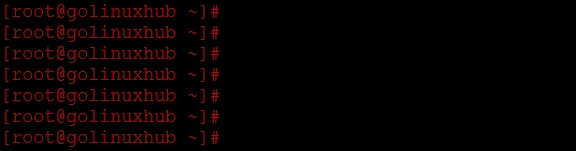
My login prompt
[root@golinuxhub ~]#
Change the color of the prompt to 'RED'
# export PS1='[33[31m][u@h ~]# [33[m]'
Below image shows complete list of color codes
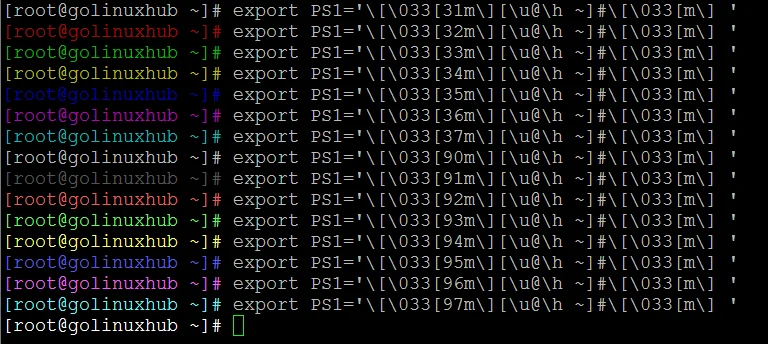
Similarly you can modify the command to change the prompt to different colors, you only need to care about below format while using the above command
start   -> [33[31m]  <-- Here modify '31m' with the color number
end     -> [33[m]    <-- to reset the terminal or else your commands would also appear with the same color
Using Bash Format
My login prompt
[root@golinuxhub ~]#
Change the color of the prompt to 'YELLOW'
# export PS1='[e[33m][u@h]#[e[m] '

Change the color of the prompt to "BRIGHT WHITE"
# export PS1='[e[97m][u@h]#[e[m] '
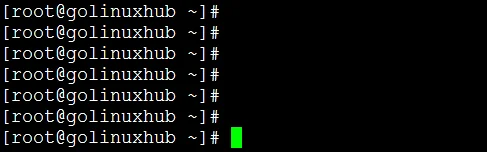
Below image shows complete list of color codes
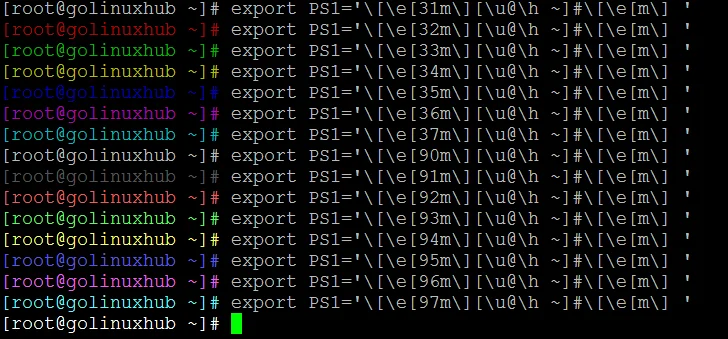
Similarly you can modify the command to change the prompt to different colors, you only need to care about below format while using the above command
start   -> [e[33m]  <-- Here modify '31m' with the color number
end     -> [e[m]    <-- to reset the terminal or else your commands would also appear with the same color
I hope the article was useful.