

In another article I have shared OpenStack CLI Cheatsheet for beginners.
OpenStack project, which is also called a cloud operational system, consists of a number of different projects developing separate subsystems. Any OpenStack installation can include only a part of them. Some subsystems can even be used separately or as part of any other OpenSource project. Their number is increasing from version to version of OpenStack project, both through the appearance of new ones and the functionality split of the existing ones. For example, nova-volume service was extracted as a separate Cinder project
Make sure the hypervisor is enabled and supported on your blade
# grep -E ' svm | vmx' /proc/cpuinfo
You should see svm or vmx among the flags supported by the processor. Also if you execute the command:
# lsmod | grep kvm
kvm_intel 143187 3
kvm 455843 1 kvm_intel
or
# lsmod | grep kvm
kvm_amd 60314 3
kvm 461126 1 kvm_amd
you should see two kernel modules loaded in the memory. The kvm is the module independent of the vendor, and the kvm_intel or kvm_amd executes VT-x or AMD-V functionality, respectively
Download Links for OpenStack Distributions
| OpenStack Distribution | Web Site Link |
| Red Hat OpenStack Platform (60-day trial) | https://www.redhat.com/en/insights/openstack |
| RDO by Red Hat | https://www.rdoproject.org/ |
| Mirantis OpenStack | https://www.mirantis.com/products/mirantis-openstacksoftware/ |
| Ubuntu OpenStack | http://www.ubuntu.com/cloud/openstack |
| SUSE OpenStack Cloud (60-day trial) | https://www.suse.com/products/suse-openstack-cloud/ |
Installing Red Hat OpenStack Platform with PackStack
Packstack provides an easy way to deploy an OpenStack Platform environemnt on one or several machines. It is customizable through a answer file, which contains a set of parameters that allows custom configuration of underlying Openstack platform service.
What is Answer File?
Packstack provides by default an answer file template that deploys an all in one environment without having to customize it. These answer files includes options to tune almost every aspect of the Openstack platform environment, including the architecture layout, moving to a multiple compute nodes-based deployment, or tuning the backend to be used both for Cinder and Neutron services.
Step 1: Bring UP the physical host server
First of all you need a base server on which you will create your entire Openstack cloud. I have bought my server with RHEL 7.4
My setup detail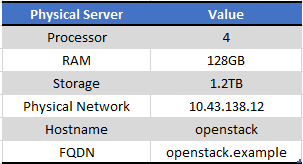
I have written another article with step by step guide for RHEL 7 Installation
Step by Step Red Hat Linux 7.0 installation (64 bit) with screenshots
- Next login to your server and registor it with Red Hat Subscription
- Install Virtual Machine Manager (if not already installed) using the "Application Installer"
- Next start creating your virtual machines as described in below chapters
Step 2: Configure BIND DNS Server
A DNS server is needed before configuring your openstack setup.
I have written another article which you can follow to set up a DNS server.
Below are my sample configuration files
# cd /var/named/chroot/var/named
My forward configuration file for the controller and compute nodes
# cat example.zone
$TTL 1D
@       IN SOA  example. root (
                                        0       ; serial
                                        1D      ; refresh
                                        1H      ; retry
                                        1W      ; expire
                                        3H )    ; minimum
@               IN NS   example.
                IN A    127.0.0.1
                IN A    10.43.138.12
openstack       IN A    10.43.138.12
controller      IN A    192.168.122.49
compute         IN A    192.168.122.215
compute-rhel    IN A    192.168.122.13
controller-rhel IN A    192.168.122.12
My reverse zone file for my physical host server hosting openstack
# cat example.rzone
$TTL 1D
@       IN SOA  example. root.example. (
                                        0       ; serial
                                        1D      ; refresh
                                        1H      ; retry
                                        1W      ; expire
                                        3H )    ; minimum
@       IN NS   example.
        IN A    127.0.0.1
        IN PTR  localhost.
12      IN PTR  openstack.example.
My reverse zone file for controller and compute node
# cat openstack.rzone
$TTL 1D
@       IN SOA  example. root.example. (
                                        0       ; serial
                                        1D      ; refresh
                                        1H      ; retry
                                        1W      ; expire
                                        3H )    ; minimum
@       IN NS   example.
        IN A    127.0.0.1
        IN PTR  localhost.
49      IN PTR  controller.example.
215     IN PTR  compute.example.
12      IN PTR  controller-rhel.example.
13      IN PTR  compute-rhel.example.
Below content added in named.rfc1912.zones
zone "example" IN {
        type master;
        file "example.zone";
        allow-update { none; };
};

zone "138.43.10.in-addr.arpa" IN {
        type master;
        file "example.rzone";
        allow-update { none; };
};

zone "122.168.192.in-addr.arpa" IN {
        type master;
        file "openstack.rzone";
        allow-update { none; };
};
Step 3: Bring UP Compute VM
My setup has a single disk with 200GB of disk space which will be used for creating instance.
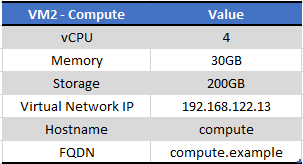
NOTE: The storage used by an instance will be under /var/lib/glance so any partition used by /var must have some free storage for an instance to be created.Below is my setup snippet
[root@compute-rhel ~]# lvs
  LV   VG   Attr       LSize   Pool Origin Data%  Meta%  Move Log Cpy%Sync Convert
  home rhel -wi-ao---- 134.49g
  root rhel -wi-ao----  50.00g
  swap rhel -wi-ao----  14.50g

[root@compute-rhel ~]# pvs
  PV         VG   Fmt  Attr PSize    PFree
  /dev/vda2  rhel lvm2 a--  <199.00g 4.00m

[root@compute-rhel ~]# vgs
  VG   #PV #LV #SN Attr   VSize    VFree
  rhel   1   3   0 wz--n- <199.00g 4.00m

[root@compute-rhel ~]# df -h
Filesystem             Size  Used Avail Use% Mounted on
/dev/mapper/rhel-root   50G  2.3G   48G   5% /
devtmpfs                15G     0   15G   0% /dev
tmpfs                   15G     0   15G   0% /dev/shm
tmpfs                   15G   17M   15G   1% /run
tmpfs                   15G     0   15G   0% /sys/fs/cgroup
/dev/vda1             1014M  131M  884M  13% /boot
/dev/mapper/rhel-home  135G   33M  135G   1% /home
tmpfs                  2.9G     0  2.9G   0% /run/user/0

[root@compute-rhel ~]# free -g
              total        used        free      shared  buff/cache   available
Mem:             28           0          26           0           1          27
Swap:            14           0          14
Pre-requisite
Disable and stop the below services using the commands as shown
# systemctl stop NetworkManager
# systemctl disable NetworkManager

# systemctl stop firewalld
# systemctl disable firewalld

# systemctl restart network
# systemctl enable network
Register and subscribe to the necessary Red Hat channels as done for controller
# subscription-manager register
Find the entitlement pool for Red Hat Enterprise Linux OpenStack Platform in the output of the following command:
# subscription-manager list --available --all
Use the pool ID located in the previous step to attach the Red Hat Enterprise Linux OpenStack Platform entitlements:
# subscription-manager attach --pool=*POOL_ID*
Disable all the repos
# subscription-manager repos --disable=*
Next enable all the needed repos
# subscription-manager repos --enable=rhel-7-server-rh-common-rpms
Repository 'rhel-7-server-rh-common-rpms' is enabled for this system.

# subscription-manager repos --enable=rhel-7-server-openstack-8-rpms
Repository 'rhel-7-server-openstack-8-rpms' is enabled for this system.

# subscription-manager repos --enable=rhel-7-server-extras-rpms
Repository 'rhel-7-server-extras-rpms' is enabled for this system.

# subscription-manager repos --enable=rhel-7-server-rpms
Repository 'rhel-7-server-rpms' is enabled for this system.
Step 4: Bring UP Controller VM
I have already shared the configuration for my Virtual Machine. I do not need to reserve much resources for the controller as it will only be used to run the important openstack services.
My setup details
IMPORTANT NOTE: I will need to create an additional volume group for the CINDER service which can be used to create additional volumes with the name "cinder-volumes"
So make sure when you are installing the controller node, create one additional volume-group "cinder-volumes" with enough space, for me I have given 100GB which will be used for adding additional volume when launching Instance.
Below is my setup snippet
[root@controller-rhel ~]# pvs
  PV         VG             Fmt  Attr PSize    PFree
  /dev/vda3  rhel           lvm2 a--   <38.52g   <7.69g
  /dev/vdb1  cinder-volumes lvm2 a--  <100.00g <100.00g

[root@controller-rhel ~]# vgs
  VG             #PV #LV #SN Attr   VSize    VFree
  cinder-volumes   1   0   0 wz--n- <100.00g <100.00g
  rhel             1   2   0 wz--n-  <38.52g   <7.69g

[root@controller-rhel ~]# lvs
  LV     VG   Attr       LSize  Pool   Origin Data%  Meta%  Move Log Cpy%Sync Convert
  pool00 rhel twi-aotz-- 30.79g               15.04  11.48
  root   rhel Vwi-aotz-- 30.79g pool00        15.04

[root@controller-rhel ~]# free -g
              total        used        free      shared  buff/cache   available
Mem:              9           2           4           0           3           7
Swap:             0           0           0
Pre-requisite
Disable and stop the below services using the commands as shown
# systemctl stop NetworkManager
# systemctl disable NetworkManager

# systemctl stop firewalld
# systemctl disable firewalld

# systemctl restart network
# systemctl enable network
Register your server
# subscription-manager register
Find the entitlement pool for Red Hat Enterprise Linux OpenStack Platform in the output of the following command:
# subscription-manager list --available --all
Use the pool ID located in the previous step to attach the Red Hat Enterprise Linux OpenStack Platform entitlements:
# subscription-manager attach --pool=*POOL_ID*
Disable all the repos
# subscription-manager repos --disable=*
Enable the below repositories (for this article I will be using openstack-8)
# subscription-manager repos --enable=rhel-7-server-rh-common-rpms
Repository 'rhel-7-server-rh-common-rpms' is enabled for this system.

# subscription-manager repos --enable=rhel-7-server-openstack-8-rpms
Repository 'rhel-7-server-openstack-8-rpms' is enabled for this system.

# subscription-manager repos --enable=rhel-7-server-extras-rpms
Repository 'rhel-7-server-extras-rpms' is enabled for this system.

# subscription-manager repos --enable=rhel-7-server-rpms
Repository 'rhel-7-server-rpms' is enabled for this system.
Next install the packstack tool
# yum install -y openstack-packstack
Next generate your answer file /root/answers.txt and view the resulting file
# packstack --gen-answer-file ~/answer-file.txt
Now we are ready to create and modify our answers file to deploy openstack services on our controller and compute node
Step 5: Create answers file and Install Openstack
The answer file will have different set of options which will be used to configure your openstack
Below are the changes which I have done for my setup.

Once you are done it is time to execute your packstack utility on the controller as shown below
[root@controller-rhel ~]# packstack --answer-file /root/answers.txt
Welcome to the Packstack setup utility

The installation log file is available at: /var/tmp/packstack/20180707-225026-DOdBB6/openstack-setup.log

Installing:
Clean Up                                             [ DONE ]
Discovering ip protocol version                      [ DONE ]
Setting up ssh keys                                  [ DONE ]
Preparing servers                                    [ DONE ]
Pre installing Puppet and discovering hosts' details [ DONE ]
Adding pre install manifest entries                  [ DONE ]
Installing time synchronization via NTP              [ DONE ]
Setting up CACERT                                    [ DONE ]
Adding AMQP manifest entries                         [ DONE ]
Adding MariaDB manifest entries                     [ DONE ]
Adding Apache manifest entries                       [ DONE ]
Fixing Keystone LDAP config parameters to be undef if empty[ DONE ]
Adding Keystone manifest entries                     [ DONE ]
Adding Glance Keystone manifest entries              [ DONE ]
Adding Glance manifest entries                       [ DONE ]
Adding Cinder Keystone manifest entries              [ DONE ]
Checking if the Cinder server has a cinder-volumes vg[ DONE ]
Adding Cinder manifest entries                       [ DONE ]
Adding Nova API manifest entries                     [ DONE ]
Adding Nova Keystone manifest entries                [ DONE ]
Adding Nova Cert manifest entries                    [ DONE ]
Adding Nova Conductor manifest entries               [ DONE ]
Creating ssh keys for Nova migration                 [ DONE ]
Gathering ssh host keys for Nova migration           [ DONE ]
Adding Nova Compute manifest entries                 [ DONE ]
Adding Nova Scheduler manifest entries               [ DONE ]
Adding Nova VNC Proxy manifest entries               [ DONE ]
Adding OpenStack Network-related Nova manifest entries[ DONE ]
Adding Nova Common manifest entries                  [ DONE ]
Adding Neutron VPNaaS Agent manifest entries         [ DONE ]
Adding Neutron FWaaS Agent manifest entries          [ DONE ]
Adding Neutron LBaaS Agent manifest entries          [ DONE ]
Adding Neutron API manifest entries                  [ DONE ]
Adding Neutron Keystone manifest entries             [ DONE ]
Adding Neutron L3 manifest entries                   [ DONE ]
Adding Neutron L2 Agent manifest entries             [ DONE ]
Adding Neutron DHCP Agent manifest entries           [ DONE ]
Adding Neutron Metering Agent manifest entries       [ DONE ]
Adding Neutron Metadata Agent manifest entries       [ DONE ]
Adding Neutron SR-IOV Switch Agent manifest entries  [ DONE ]
Checking if NetworkManager is enabled and running    [ DONE ]
Adding OpenStack Client manifest entries             [ DONE ]
Adding Horizon manifest entries                      [ DONE ]
Adding post install manifest entries                 [ DONE ]
Copying Puppet modules and manifests                 [ DONE ]
Applying 192.168.122.13_prescript.pp
Applying 192.168.122.12_prescript.pp
192.168.122.13_prescript.pp:                         [ DONE ]
192.168.122.12_prescript.pp:                         [ DONE ]
Applying 192.168.122.13_chrony.pp
Applying 192.168.122.12_chrony.pp
192.168.122.13_chrony.pp:                            [ DONE ]
192.168.122.12_chrony.pp:                            [ DONE ]
Applying 192.168.122.12_amqp.pp
Applying 192.168.122.12_mariadb.pp
192.168.122.12_amqp.pp:                              [ DONE ]
192.168.122.12_mariadb.pp:                           [ DONE ]
Applying 192.168.122.12_apache.pp
192.168.122.12_apache.pp:                            [ DONE ]
Applying 192.168.122.12_keystone.pp
Applying 192.168.122.12_glance.pp
Applying 192.168.122.12_cinder.pp
192.168.122.12_keystone.pp:                          [ DONE ]
192.168.122.12_cinder.pp:                            [ DONE ]
192.168.122.12_glance.pp:                            [ DONE ]
Applying 192.168.122.12_api_nova.pp
192.168.122.12_api_nova.pp:                          [ DONE ]
Applying 192.168.122.12_nova.pp
Applying 192.168.122.13_nova.pp
192.168.122.12_nova.pp:                              [ DONE ]
192.168.122.13_nova.pp:                              [ DONE ]
Applying 192.168.122.13_neutron.pp
Applying 192.168.122.12_neutron.pp
192.168.122.12_neutron.pp:                           [ DONE ]
192.168.122.13_neutron.pp:                           [ DONE ]
Applying 192.168.122.12_osclient.pp
Applying 192.168.122.12_horizon.pp
192.168.122.12_osclient.pp:                          [ DONE ]
192.168.122.12_horizon.pp:                           [ DONE ]
Applying 192.168.122.13_postscript.pp
Applying 192.168.122.12_postscript.pp
192.168.122.12_postscript.pp:                        [ DONE ]
192.168.122.13_postscript.pp:                        [ DONE ]
Applying Puppet manifests                            [ DONE ]
Finalizing                                           [ DONE ]

 **** Installation completed successfully ******
Additional information:
* File /root/keystonerc_admin has been created on OpenStack client host 192.168.122.12. To use the command line tools you need to source the file.
* To access the OpenStack Dashboard browse to http://192.168.122.12/dashboard .
Please, find your login credentials stored in the keystonerc_admin in your home directory.
* The installation log file is available at: /var/tmp/packstack/20180707-225026-DOdBB6/openstack-setup.log
* The generated manifests are available at: /var/tmp/packstack/20180707-225026-DOdBB6/manifests
If everything goes nice then you should see all GREEN and at the end of you will get the link to your dashboard.
NOTE: You can rerun PackStack with option -d if you need to update the configuration.
Install openstack-utils to check the status of all the openstack services
# yum -y install openstack-utils
Next check the status
[root@controller-rhel ~]# openstack-status
== Nova services ==
openstack-nova-api:                     active
openstack-nova-cert:                    active
openstack-nova-compute:                 inactive  (disabled on boot)
openstack-nova-network:                 inactive  (disabled on boot)
openstack-nova-scheduler:               active
openstack-nova-conductor:               active
== Glance services ==
openstack-glance-api:                   active
openstack-glance-registry:              active
== Keystone service ==
openstack-keystone:                     inactive  (disabled on boot)
== Horizon service ==
openstack-dashboard:                    active
== neutron services ==
neutron-server:                         active
neutron-dhcp-agent:                     active
neutron-l3-agent:                       active
neutron-metadata-agent:                 active
neutron-openvswitch-agent:              active
== Cinder services ==
openstack-cinder-api:                   active
openstack-cinder-scheduler:             active
openstack-cinder-volume:                active
openstack-cinder-backup:                inactive  (disabled on boot)
== Support services ==
mysqld:                                 unknown
libvirtd:                               active
openvswitch:                            active
dbus:                                   active
target:                                 active
rabbitmq-server:                        active
memcached:                              active
== Keystone users ==
Warning keystonerc not sourced
Step 6: Source keystonerc file
Next you can source your keystoncerc file to get more detailed list of openstack-service status. This keystonerc file will be created with packstack above and will be available at the home folder of root as shown below for me
[root@controller-rhel ~]# ls -l keystonerc_admin
-rw-------. 1 root root 229 Jul  7 22:57 keystonerc_admin

[root@controller-rhel ~]# pwd
/root

[root@controller-rhel ~]# source keystonerc_admin
Next check the status again
[root@controller-rhel ~(keystone_admin)]# openstack-status
== Nova services ==
openstack-nova-api:                     active
openstack-nova-cert:                    active
openstack-nova-compute:                 inactive  (disabled on boot)
openstack-nova-network:                 inactive  (disabled on boot)
openstack-nova-scheduler:               active
openstack-nova-conductor:               active
== Glance services ==
openstack-glance-api:                   active
openstack-glance-registry:              active
== Keystone service ==
openstack-keystone:                     inactive  (disabled on boot)
== Horizon service ==
openstack-dashboard:                    active
== neutron services ==
neutron-server:                         active
neutron-dhcp-agent:                     active
neutron-l3-agent:                       active
neutron-metadata-agent:                 active
neutron-openvswitch-agent:              active
== Cinder services ==
openstack-cinder-api:                   active
openstack-cinder-scheduler:             active
openstack-cinder-volume:                active
openstack-cinder-backup:                inactive  (disabled on boot)
== Support services ==
mysqld:                                 unknown
libvirtd:                               active
openvswitch:                            active
dbus:                                   active
target:                                 active
rabbitmq-server:                        active
memcached:                              active
== Keystone users ==
+----------------------------------+---------+---------+-------------------+
|                id                |   name  | enabled |       email       |
+----------------------------------+---------+---------+-------------------+
| e97f18a9994e4b99bcc0e6fe8db95cd3 |  admin  |   True  |   root@localhost  |
| dccbaca5e2ee4866b343573678ec3bf7 |  cinder |   True  |  cinder@localhost |
| 7dec80c93f8a4aafa1559a59e6bf606c |  glance |   True  |  glance@localhost |
| 778e4fbefdfa4329bf9b7143ce6ffe74 | neutron |   True  | neutron@localhost |
| e3d85ca8a8bb4ba5a9457712ce5814f5 |   nova  |   True  |   nova@localhost  |
+----------------------------------+---------+---------+-------------------+
== Glance images ==
+----+------+
| ID | Name |
+----+------+
+----+------+
== Nova managed services ==
+----+------------------+------------------------+----------+---------+-------+----------------------------+-----------------+
| Id | Binary           | Host                   | Zone     | Status  | State | Updated_at                 | Disabled Reason |
+----+------------------+------------------------+----------+---------+-------+----------------------------+-----------------+
| 1  | nova-consoleauth | controller-rhel.example| internal | enabled | up    | 2018-07-07T18:02:59.000000 | -               |
| 2  | nova-scheduler   | controller-rhel.example| internal | enabled | up    | 2018-07-07T18:03:00.000000 | -               |
| 3  | nova-conductor   | controller-rhel.example| internal | enabled | up    | 2018-07-07T18:03:01.000000 | -               |
| 4  | nova-cert        | controller-rhel.example| internal | enabled | up    | 2018-07-07T18:02:57.000000 | -               |
| 5  | nova-compute     | compute-rhel.example   | nova     | enabled | up    | 2018-07-07T18:03:04.000000 | -               |
+----+------------------+------------------------+----------+---------+-------+----------------------------+-----------------+
== Nova networks ==
+----+-------+------+
| ID | Label | Cidr |
+----+-------+------+
+----+-------+------+
== Nova instance flavors ==
+----+-----------+-----------+------+-----------+------+-------+-------------+-----------+
| ID | Name      | Memory_MB | Disk | Ephemeral | Swap | VCPUs | RXTX_Factor | Is_Public |
+----+-----------+-----------+------+-----------+------+-------+-------------+-----------+
| 1  | m1.tiny   | 512       | 1    | 0         |      | 1     | 1.0         | True      |
| 2  | m1.small  | 2048      | 20   | 0         |      | 1     | 1.0         | True      |
| 3  | m1.medium | 4096      | 40   | 0         |      | 2     | 1.0         | True      |
| 4  | m1.large  | 8192      | 80   | 0         |      | 4     | 1.0         | True      |
| 5  | m1.xlarge | 16384     | 160  | 0         |      | 8     | 1.0         | True      |
+----+-----------+-----------+------+-----------+------+-------+-------------+-----------+
== Nova instances ==
+----+------+--------+------------+-------------+----------+
| ID | Name | Status | Task State | Power State | Networks |
+----+------+--------+------------+-------------+----------+
+----+------+--------+------------+-------------+----------+
So as you see it gives me a detailed status of all the openstack services.
Now you can login to the horizon dashboard.

Follow below links for next chapters to continue with the configuration of rest of the services in Openstack
Part 4: How to create, launch and connect to an instance from scratch in Openstack